- Install
- Basic operation
- Basics of programming for electronic work
- Basics of programming for Excel
- Machine learning with scikit-learn
- Visualizing data with matplotlib
- Web programming
- RPA programming
- Miscellaneous programming
- Reference
- "Basic" group
- ”Basic I/O" group
- ”PWM Output" group
- "Servo Motor" group
- ”Motor" group
- ”Display" group
- ”Sensor" group
- "Micro controller" group
- "Excel" group
- "Basic" group
- "Workbook" group
- "Sheet" group
- "Range" group
- "Macro" group
- Overview
- Usage of each block
- "scikit-learn" group
- "matplotlib" group
- "Web" group
- "File" group
- "Image" group
- "Turtle" group
- "Speech" group
Usage of each block
Run a workbook macro
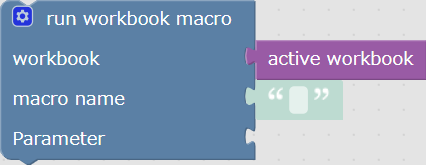
Run a macro (Sub procedure) contained in a workbook.
Specify the target workbook in "Active workbook".
In the "Macro name" parameter, specify the name of the macro to be executed.
In the "Parameter" parameter, specify the parameters to be passed to the macro.
If you want to increase the number of parameters, click the gear icon in the upper right corner of the block, then drag as many "Item" blocks as you need into the "Parameter" block.
Results of running a workbook macro
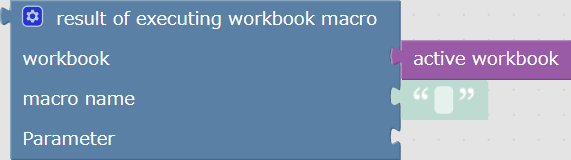
Runs a macro (function procedure) contained in a workbook and obtains the result (return value).
Specify the target workbook in "Active workbook".
In the "Macro name" parameter, specify the name of the macro to be executed.
In the "Parameter" parameter, specify the parameters to be passed to the macro.
If you want to increase the number of parameters, click the gear icon in the upper right corner of the block, and then drag as many "Item" blocks as you need into the "Parameter" block.
Run the addin macro
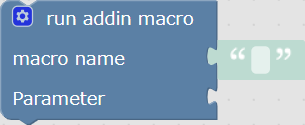
Run the macro (Sub procedure) included in the addin.
Specify the name of the macro to be executed in the "Macro name" parameter.
Specify the parameters to be passed to the macro in the "Parameter" parameter.
If you want to increase the number of parameters, click the gear icon in the upper right corner of the block, then drag as many "Item" blocks as you need into the "Parameter" block.
Results of running an addin macro
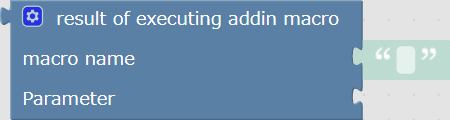
Runs a macro (Function procedure) included in the addin and obtains the result (return value).
Specify the name of the macro to be executed in the "Macro name" parameter.
Also, specify the parameters to be passed to the macro in the "Parameter" parameter.
If you want to increase the number of parameters, click the gear icon in the upper right corner of the block, then drag as many "Item" blocks as you need into the "Parameter" block.