- Install
- Basic operation
- Basics of programming for electronic work
- Basics of programming for Excel
- Machine learning with scikit-learn
- Visualizing data with matplotlib
- Web programming
- RPA programming
- Miscellaneous programming
- Reference
Usage of each block
Initialize Turtle

Initialize Turtle Graphics.
Specify the size and position of the Turtle Graphics window.
Set Color

Set the pen color and fill color.
Pen down

Put the pen down to start drawing.
Lines and other objects will be drawn wherever the turtle moves before you lift the pen.
Pen up

Lift the pen.
No lines will be drawn even if the turtle moves until you next put the pen down.
Pen Thickness
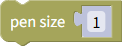
Sets the pen thickness.
Move Forward
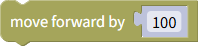
Moves the turtle forward the specified number of pixels.
Move Backward
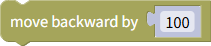
Moves the turtle backward the specified number of pixels.
Go to a specified position
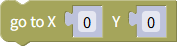
Moves the turtle to a specified position.
Turn Right
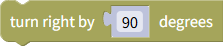
Turns the turtle to the right by the specified angle.
Rotate Left
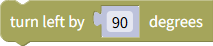
Turns the turtle to the left by the specified angle.
Set Heading

Sets the turtle's heading to the specified angle.
Angles are measured counterclockwise, with 0 degrees pointing right.
Draw a Dot

Draws a dot of the specified size at the turtle's position.
Draw an Arc

Draws an arc starting from the current turtle position.
Specifying a positive angle will draw a counterclockwise arc.
Conversely, specifying a negative angle will draw a clockwise arc.
Draw Stamp

Draws a turtle-shaped stamp at the current turtle position.
Select Turtle Shape

Selects the turtle shape.
Draw Text

Draws the specified text at the turtle's position.
The "Alignment" parameter allows you to select the text alignment from left, center, or right based on the turtle's position.
Checking the "Move" checkbox moves the turtle to the bottom right position of the last character.
Note that the text is drawn to the right regardless of the turtle's orientation.
Begin filling

Fill the interior of the shape you will draw next.
The fill color is specified in the Color specification block.
End filling

Finish filling the interior of the shape.
Set Speed
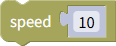
Set the turtle's speed using a value between 0 and 10.
If you specify a value between 1 and 10, values closer to 1 will be slower, while values closer to 10 will be faster.
Also, specifying 0 will set the speed to maximum speed, and the turtle's movement will not be displayed.
Reset

Resets the drawing.
Clears all drawings and moves the turtle to the center of the window. It also faces right.
Show/Hide Turtle
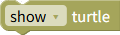
Toggles the turtle's visibility.
Update Drawing

Updates the turtle drawing.
If you are performing other time-consuming processing between drawings, inserting a update drawing block in the middle will prevent the Turtle Graphics window from freezing.
End Drawing

If no further processing is required after all Turtle Graphics drawing has finished, insert this block.
Without this block, the Turtle Graphics window will freeze.
Get X Coordinate

Gets the turtle's X coordinate.
Get Y Coordinate

Gets the turtle's Y coordinate.
Get Heading

Gets the turtle's heading.
Get Pen State

Gets the pen state.
If the pen is down, this is true; if it is up, this is false.