- Install
- Basic operation
- Basics of programming for electronic work
- Basics of programming for Excel
- Machine learning with scikit-learn
- Visualizing data with matplotlib
- Web programming
- RPA programming
- Miscellaneous programming
- Reference
Control NeoPixel
You can control NeoPixel LED strings such as WS2812B.
NeoPixel-related blocks are in the "Display" - "NeoPixel" group.
Wiring
Connect the NeoPixel data pin to the microcontroller's GPIO pin.
Also, connect the NeoPixel's 5V (or 12V) and GND pins to a power supply.
If you are using 5V NeoPixels and only one or two of them are lit at the same time, you can use the 5V pin of the microcontroller to power them.
However, if you want to light up many NeoPixels at the same time, you will need to prepare a separate switching power supply and power it from there.
If you use a switching power supply, you will also need to connect the GND of the microcontroller to the GND of the switching power supply.
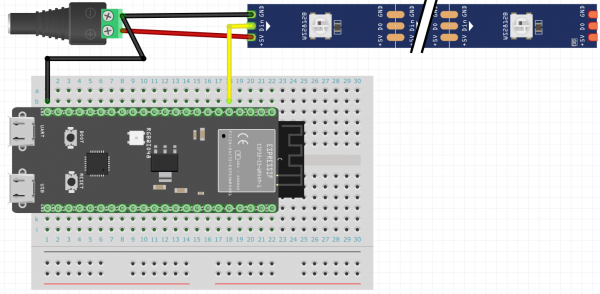
The following diagram shows an example of connecting a NeoPixel to pin 4 of the ESP32-S3 and powering it from a switching power supply.
GPIO pins that can be used
For Raspberry Pi, connect pin 10 to the NeoPixel.
For other microcontrollers, there are no particular restrictions on the GPIO pins.
Initialization
First, initialize the NeoPixel using the "Initialize NeoPixel number XX of XX" block.

With the ESP32 series, you can connect multiple (up to 5) NeoPixels and specify the control target in the "Xth" part.
With other microcontrollers, only one NeoPixel can be controlled at a time.
In the "Pin" parameter, specify the GPIO pin to which the NeoPixel is connected.
In the "assign XX pin of XX to XX" block in the "Basic I/O" group, assign the pin to a variable in advance, and specify that variable as the "Pin" parameter.
The "number of pixels" parameter specifies the number of pixels in the NeoPixel.
If the color is not correct when you turn on the NeoPixel, try specifying a value other than "RGB" in the "color order" parameter.
Lighting up pixels
To determine the color of each pixel, use the "Set color of NeoPixel number of XX to XX" block.

Also, to light up all pixels with the same color, use the "Set color of all X NeoPixels of XX to XX" block.

After deciding the pixel colors with these blocks, execute the "update display of Xth NeoPixel in XX" block and the NeoPixel will light up.

Example
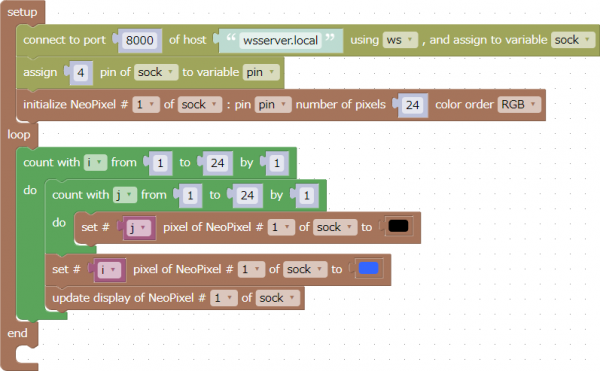
The following example shows how to change each NeoPixel pixel to blue in sequence.
The number of NeoPixels is 24.
This program can be downloaded from here.