- Install
- Basic operation
- Basics of programming for electronic work
- Connect to micro computer
- Input / Output
- PWM Output
- Motor control
- Display
- Control LCD
- Control NeoPixel
- Control OLED display
- Controlling the RGB LED on the Raspberry Pi 500+ keyboard
- Controlling the onboard LED matrix and RGB LEDs on the Arduino UNO Q
- Sensor
- Micro controller
- Basics of programming for Excel
- Machine learning with scikit-learn
- Visualizing data with matplotlib
- Web programming
- RPA programming
- Miscellaneous programming
- Reference
Controlling the onboard LED matrix and RGB LEDs on the Arduino UNO Q
The Arduino UNO Q has an onboard LED matrix and RGB LEDs.
You can control their display using the blocks in the "Display" - "Arduino UNO Q" group.
Initialization
After connecting to the Arduino UNO Q, use the initialization block to initialize the LED matrix and RGB LEDs.

Displaying Bitmaps
You can display bitmaps on the LED matrix using the display bitmap block.
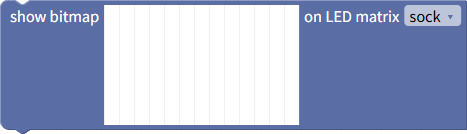
Clicking on the bitmap allows you to set the on/off state of individual pixels.
Black indicates on, white indicates off.
Display Grayscale Bitmap
Using the grayscale bitmap display block, you can display a bitmap with 8 brightness levels specified for each LED.
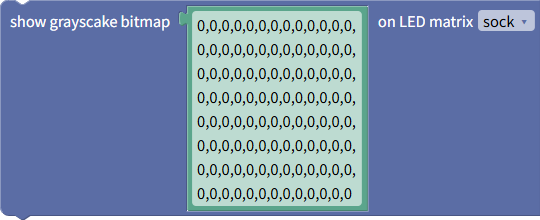
The brightness of each LED is represented by an 8-level numerical value from 0 (off) to 7 (on).
There are 104 LEDs (8 rows x 13 columns), so the bitmap is represented by arranging 104 numerical values from 0 to 7.
It can be represented in the following two ways:
- A string containing 104 numbers from 0 to 7 separated by commas (newlines can be included)
- A list containing 104 numbers from 0 to 7 as elements
Scrollable Text
You can scroll and display alphanumeric text on an LED matrix.

The "direction" parameter determines the direction in which the text scrolls.
The "speed" parameter specifies the time in milliseconds (= 1/1000 of a second) it takes to scroll one pixel horizontally.
If you specify long text, it may take more than 10 seconds to finish scrolling.
Executing a process that takes more than 10 seconds will result in a timeout error.
Therefore, if scrolling takes more than 10 seconds, increase the value of the "Timeout" parameter to extend the time before the timeout occurs.
Clearing the LED Matrix
The Clear block can be used to turn off all LEDs in an LED matrix.

Turning on RGB LEDs
The Arduino UNO Q has four onboard RGB LEDs.
Each LED can be lit by specifying its color.
