- Install
- Basic operation
- Basics of programming for electronic work
- Basics of programming for Excel
- Launch Excel
- Basic operation
- Range operation
- Sheet operation
- Workbook operation
- Machine learning with scikit-learn
- Visualizing data with matplotlib
- Web programming
- RPA programming
- Miscellaneous programming
- Reference
Basic operation
When you connect to Excel with Tsumicky, there will be no workbook.
First, let's get into a state where we can handle workbook files.
You can also save the file after you finish working in Excel.
File-related operations are located in the "Excel" - "Basic" group.
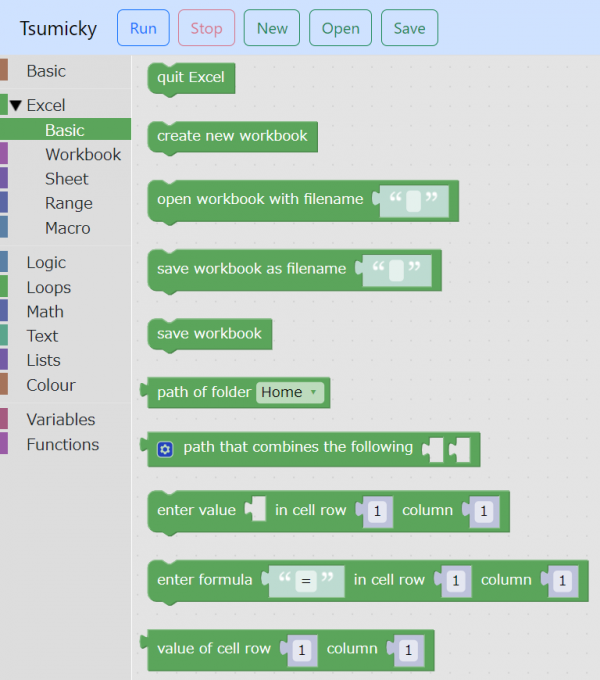
Create new file
If you want to create a new workbook file, drag the "create new workbook" block.

Open existing file
To open an existing book file, drag the "Open book with file name" block.
Specify the full path of the book file in the file name section.

If you want to open a file in a special folder, such as a document, combine a block that represents the path of the special folder with a block that says "path that combines the following'', and open the file with `"open workbook with file name ... ” block.


For example, if you want to open the "sample.xlsx" file in the "Documents" folder, combine the blocks as shown below.

Basic cell operations
If you use the block "enter value ... in the cell row ... column ...", you can enter numbers and characters in cells.
You can.

You can also enter a calculation formula into a cell by using the block "enter formula ... in cell row ... column ...".
The formula is written in the same way as when entering a formula in a cell in Excel.

Also, by using the "value of cell row ... column ..." block, you can read the cell value and use it in a formula.

If you want to perform more detailed range operations, use the blocks in the "Excel" - "Range" group.
Save file
After performing various operations, you can save the results to a file.
If you have an existing file open, you can overwrite it by executing the "save workbook" block.

Also, if you want to save a newly created file, or if you want to save an existing file with a different name after working with it, use the ``save workbook as filename ...'' block.
