- Install
- Basic operation
- Basics of programming for electronic work
- Basics of programming for Excel
- Launch Excel
- Basic operation
- Range operation
- Sheet operation
- Workbook operation
- Machine learning with scikit-learn
- Visualizing data with matplotlib
- Web programming
- RPA programming
- Miscellaneous programming
- Reference
Range operation
You can enter values into cells and set formats using the blocks in the Excel - Range group.
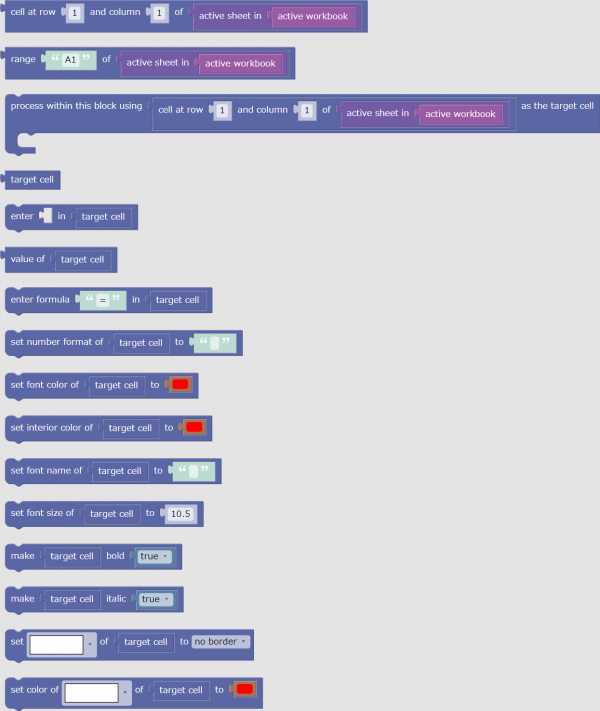
Perform one operation on a cell (range)
If you want to perform only one operation on a cell (or cell range), combine blocks as shown below.
- Drag the block corresponding to the operation to the workspace.
- Drag the block "cell at row 1 and column 1 of active sheet in active workbook" or "range "A1" of active sheet in active workbook" to the "target cell" section.
- The "target cell" block will be pushed out, so drag it to the trash can at the bottom right of the workspace and throw it away.
- Specify the position of the cell you want to operate.
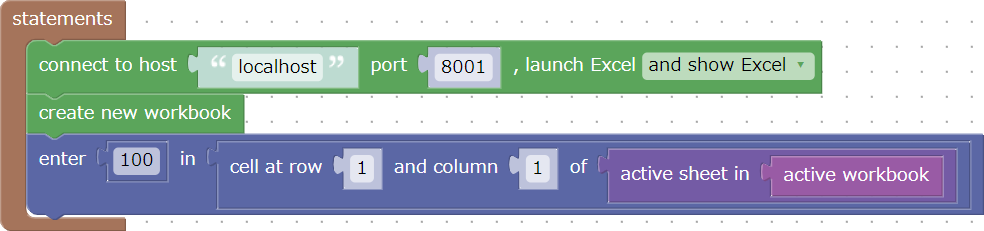
For example, if you want to enter the number 100 in a cell in row 1 and column 1, follow the steps below.
- Drag the "enter ... in target cell" block to the workspace.
- Drag the "0" block from the "Math" group to the blank area of the "Enter ... in the target cell" block and enter "100".
- Drag the block "Cell at row 1 and column 1 of active sheet of active workbook" to the "target cell" section of the "enter ... in target cell" block.
- Drag the "target cell" block to the trash can.
If you create a new workbook and make the above example work, the screen will look like the one below.
This example can be downloaded from here.
Perform multiple operations on cells (range)
If you want to perform multiple operations on a cell (or range of cells) in succession, combine blocks as shown below.
- Drag the "process within this block using cells at row 1 and column 1 of active sheet in active workbook as the target cell" block to the workspace.
- If you want to specify the operation target as a range, change the block of "range A1 of active sheet in active workbook" to the block of "cell at row 1 and column 1 of active sheet in active workbook". Drag it to a location and throw the `"cell at row 1 and column 1 of active sheet in active workbook'' into the trash.
- Specify the position of the cell to be operated on.
- Drag the blocks of the operations you want to perform in order into the "Process within this block using..." block and set the contents.
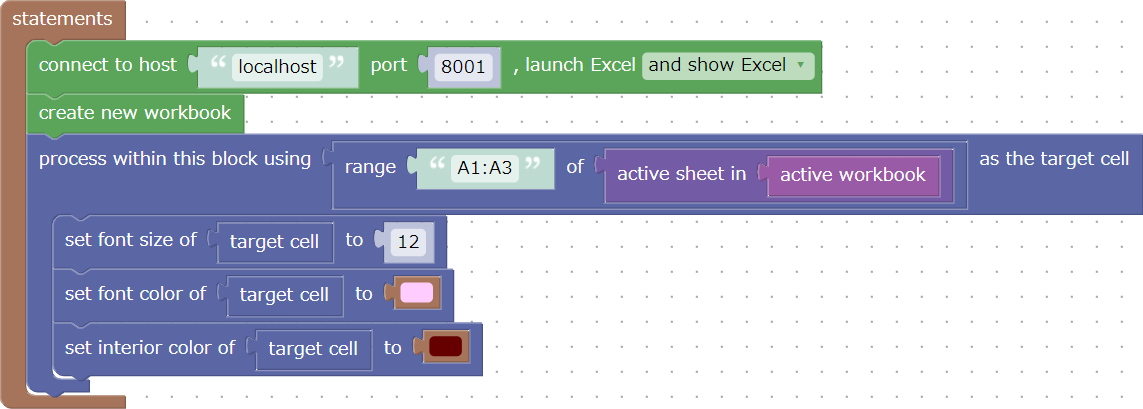
For example, suppose you want to perform the following operations on cells A1 to A3.
- Set font size to 12 points
- Make the text color pink
- Make the background color brown
In this case, drag the blocks to the workspace in the following order:
- Drag the "process within this block using cells at row 1 and column 1 of active sheet in active workbook as the target cell" block to the workspace.
- Drag the block "range A1 of active sheet in active workbook" to "cells at row 1 and column 1 of active sheet in active workbook", and then Throws the "cells at row 1 and column 1 of active sheet in active workbook" into the trash.
- Change "A1" to "A1:A3".
- Drag the block "set font size of target cell to ..." and enter "12" in the font size field.
- Drag the "set font color of target cell to ..." block and select pink from the color options.
- Drag the "set interior color of target to ..." block and select brown from the color options.
If you create a new workbook and make the above example work, the screen will look like the one below.
This example can be downloaded from here.