- Install
- Basic operation
- Basics of programming for electronic work
- Basics of programming for Excel
- Launch Excel
- Basic operation
- Range operation
- Sheet operation
- Workbook operation
- Machine learning with scikit-learn
- Visualizing data with matplotlib
- Web programming
- RPA programming
- Miscellaneous programming
- Reference
Workbook operation
Blocks in the Workbook group allow you to manipulate workbooks and specify the workbook that contains cells and sheets.
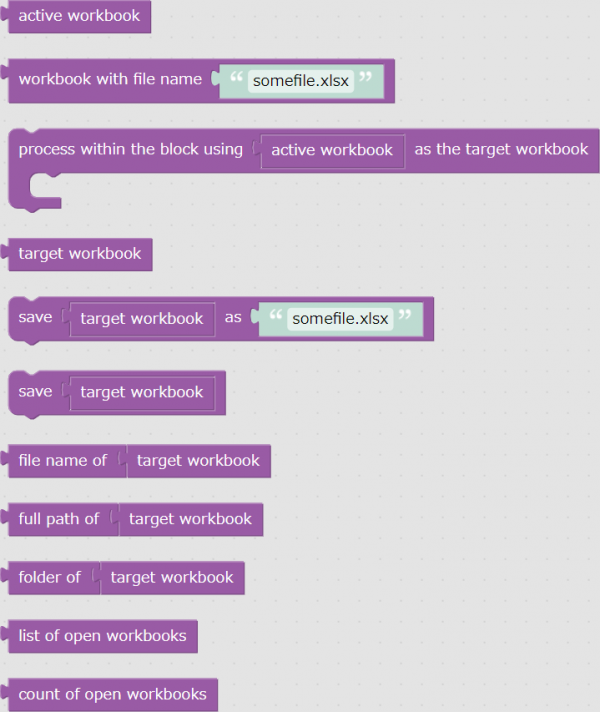
Perform one operation on one workbook
If you want to perform only one operation on the active workbook (for example, overwriting the workbook), drag the block using the following steps.
- Drag the block to manipulate the workbook.
- Drag the "Workbook with file name ..." block to the "target workbook" section.
- Specify the name of the workbook.

For example, if you have a workbook called "sample.xlsx" open and you want to overwrite and save that workbook, drag the block as follows.
- Drag the "save target workbook" block.
- Drag the block "Workbook with file name ..." to "target workbook".
- Enter "sample.xlsx" in the file name field.

Perform multiple operations on one workbook
If you want to perform multiple operations on one workbook, drag blocks as follows.
- Drag the block "process within the block using active workbook as the target workbook."
- Drag the "workbook with file name ..." block to the "active workbook" section.
- Specify the name of the book.
- Insert the block for the operation you want to perform inside the "process within the block using active workbook..." block.

Specify a workbook and operate sheets and cells
If you want to work with sheets in a specific workbook, drag blocks as follows:
- Drag the sheet manipulation block to the workspace.
- Drag the block "sheet with index ... in active workbook" or "sheet with name ... in active workbook" from the "Sheet" group to "target sheet", and specity sheet index or name.
- Drag the "workbook with file name ..." block to the "active workbook" section and specify the file name.
Also, if you want to manipulate cells on a specific sheet in a specific workbook, drag the block using the steps below.
- Drag the cell manipulation block to the workspace.
- Drag a block such as "cell at row ... and column ... of active sheet in active workbook" to "target cell".
- Drag the "sheet with index ... in active workbook" or "sheet with name ... in active workbook" block to the "active sheet in active workbook" section, and specify the sheet number or name.
- Drag the "Workbook with file name ..." block to the "active workbook" section and specify the file name.
For example, suppose you have a file called "sample.xlsx" open and want to enter 100 in cell B2 of the second sheet.
In this case, drag the blocks in the following order:
- Drag the "enter ○○ intarget cell" block.
- Drag the "0" block from the "Math" group to the value you want to enter.
- Rewrite "0" to "100".
- Drag the block "range A1 of active sheet in active workbook" to "target cell".
- Rewrite “A1” to “B2”.
- Drag the "sheet with index ... in active workbook" block to the "active sheet in active workbook" section.
- Enter "2" in the sheet number field.
- Drag the block "workbook with file name ..." to the "active workbook" section.
- Enter "sample.xlsx" in the file name field.
