- Install
- Basic operation
- Basics of programming for electronic work
- Basics of programming for Excel
- Machine learning with scikit-learn
- Visualizing data with matplotlib
- Web programming
- RPA programming
- Miscellaneous programming
- Reference
How to use on Arduino UNO Q
You can control some of the Arduino UNO Q's functions with Tsumicky.
Installing the Development Environment
The Arduino UNO Q is controlled by a combination of Arduino sketches and Python scripts.
To write sketches, use the Arduino IDE.
Please install Arduino IDE version 2.3.7 or later on your computer.
Python programs are managed using Arduino App Lab.
Please also install Arduino App Lab on your computer.
Installing Libraries
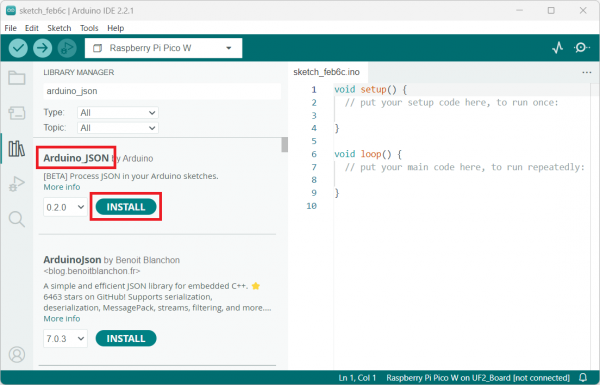
In the Arduino IDE, select "Tools" → "Manage Libraries" to open the Library Manager.
Install the following libraries in the Library Manager.
Please note that "Arduino_JSON" also has a library with a similar name, "ArduinoJson," so be careful not to confuse them.
| Library | Search Keywords |
|---|---|
| Arduino_JSON | arduino_json |
| MsgPack | msgpack |
| Servo | servo |
| Adafruit PWM Servo Driver | adafruit pwm |
| LiquidCrystal_I2C | lcd |
| Adafruit BMP280 Library | adafruit bmp280 |
| FastIMU | fastimu |
| MAX30100lib | max30100lib |
Uploading a Sketch
Select "File" - "Open" to open the firmware sketch.
The sketch file is the "tmkfirm.ino" file located in the "firmware" - "tmkfirm" folder in the Tsumicky unzipped folder.
Next, configure the following:
- Select "Tools" - "Board" - "Arduino UNO Q Board" - "Arduino UNO Q" to set the board to the Arduino UNO Q.
- Select the port (serial or network) to which the Arduino UNO Q is connected from the "Tools" - "Port" menu.
- Select "Tools" - "Startup mode" - "Wait for Linux" to launch the sketch after Linux boots.
Then, select "Sketch" → "Upload" to upload the sketch to the Arduino UNO Q.
Uploading a Python Script
Upload the Python script to the Arduino UNO Q.
Connect to the Arduino UNO Q using software that supports SFTP connections (e.g., FileZilla).
The connection information is as follows:
| Item | Value |
|---|---|
| Hostname | The name you entered during initial setup of your Arduino UNO Q, with ".local" appended |
| Username | arduino |
| Password | The password you entered during initial setup of your Arduino UNO Q |
Once connected, you will be able to navigate the contents of the arduino user's home directory.
There will be a directory called "ArduinoApps" there; open that directory.
The ArduinoApps directory contains a directory for each program developed with Arduino App Lab.
Now, upload the "unoq" folder from the "firmware" -> "tmkfirm" folder in the Tsumicky unzipped folder to the ArduinoApps directory.
Starting the Firmware
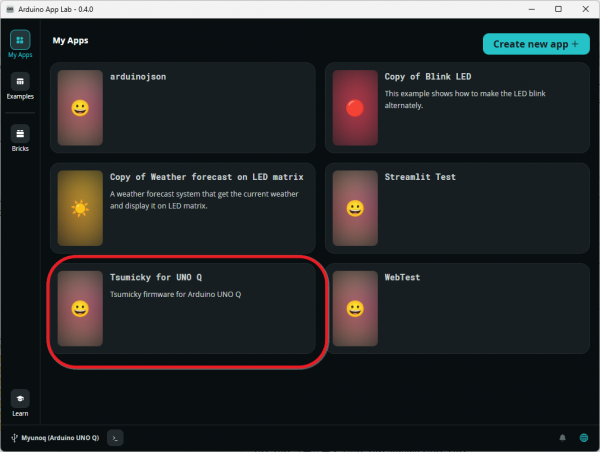
Launch Arduino App Labs and click the "My Apps" button to open the app list page.
The "Tsumicky for UNO Q" app will appear; click it to open it.
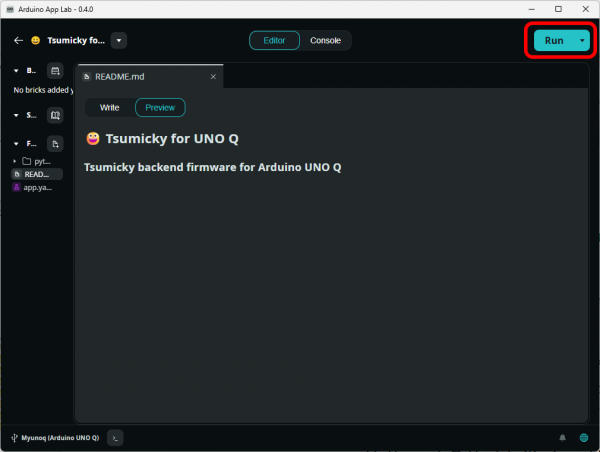
After opening the app, click the "Run" button in the upper right corner of Arduino App Lab to launch the firmware.